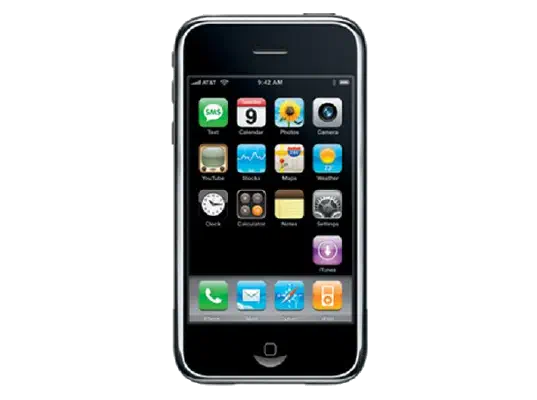
iPhoneOS 2.0 (5A347) for iPhone 2G
✓ This firmware is signed. This means that you can restore to it in Finder, the Apple Devices app, iTunes, or idevicerestore.
Your download should begin shortly. If it does not, you can download it directly here:
Download (218 MiB)Windows
- Install the latest version of Apple Devices from the Microsoft Store.
- Plug your iPhone 2G in to your PC.
- Open Apple Devices, and navigate to your iPhone 2G.
- Hold the Shift key on your keyboard, and press "Restore".
- Select the
iPhone1,1_2.0_5A347_Restore.ipswfile that you downloaded. - Wait for the restore to complete, and the iPhone 2G to reboot.
macOS
- Plug your iPhone 2G in to your Mac.
- Navigate to your iPhone 2G in Finder.
- Hold the Option or Alt key on your keyboard, and press "Restore".
- Select the
iPhone1,1_2.0_5A347_Restore.ipswfile that you downloaded. - Wait for the restore to complete, and the iPhone 2G to reboot.
Linux
- Install idevicerestore.
- Plug your iPhone 2G in to your PC.
- Open a terminal, and navigate to the IPSW file that you downloaded, e.g.
cd ~/Downloads - To perform a full erase restore, type
idevicerestore -e iPhone1,1_2.0_5A347_Restore.ipswand press enter. - Wait for the restore to complete, and the iPhone 2G to reboot.
Windows
- Open PowerShell, and navigate to the IPSW file that you downloaded, e.g.
cd Downloads - Type
Get-FileHash iPhone1,1_2.0_5A347_Restore.ipsw -Algorithm SHA1 - The output of the command should match the following checksum:
9c510a3cfce789fa5f92a8f763c231bac82ff6d4. If it doesn't, you may need to redownload the file.
macOS
- Open a terminal, and navigate to the IPSW file that you downloaded, e.g.
cd ~/Downloads - Type
openssl sha1 iPhone1,1_2.0_5A347_Restore.ipsw - The output of the command should match the following checksum:
9c510a3cfce789fa5f92a8f763c231bac82ff6d4. If it doesn't, you may need to redownload the file.
Linux
- Open a terminal, and navigate to the IPSW file that you downloaded, e.g.
cd ~/Downloads - Type
openssl sha1 iPhone1,1_2.0_5A347_Restore.ipsw - The output of the command should match the following checksum:
9c510a3cfce789fa5f92a8f763c231bac82ff6d4. If it doesn't, you may need to redownload the file.
Checksums
| SHA256sum | aeaeff89a4a5c3fb45145820b8a010879a87d97a2648d3923e037053342f3799 |
|---|---|
| MD5sum | aeaeff89a4a5c3fb45145820b8a010879a87d97a2648d3923e037053342f3799 |
| SHA1sum | 9c510a3cfce789fa5f92a8f763c231bac82ff6d4 |
iPhone 2.0 Software Update
This version of the software includes the following improvements and supersedes all previous versions.
• Third-party application support
• New App Store
• Microsoft Exchange ActiveSync support
- Push email
- Push contacts with Global Address List lookup
- Push calendars with meeting invites
- Passcode Policies
- Remote Wipe
- Autodiscovery (Exchange Server 2007)
• Cisco IPSec VPN support
• WPA/WPA2 Enterprise with 802.1x authentication
• Certificates and identities support
• Device configuration with Configuration Profiles
• MobileMe support
- Push email
- Push contacts
- Push calendars
- Bookmarks
• Mail, Contacts and Calendars enhancements
- Mass delete and move of messages
- Microsoft PowerPoint and iWork attachment viewing
- Blind carbon copy (bcc) support
- Easier POP/IMAP account setup
- Multiple calendars
- Display meeting invitees
- Contacts search
- Import SIM contacts
- New Mail, Contacts, Calendars settings
• Save images to photo library from Safari and Mail
• Scientific calculator in landscape mode
• Parental controls/restrictions
• New languages, dictionaries, keyboards and input methods
• Turn Wi-Fi back on while in Airplane Mode
• Tapping the status bar scrolls to top of page
• Sync Google contacts with iTunes
• Bug fixes
For feature descriptions and complete instructions, see the users guide for your iPhone at:
http://www.apple.com/support/manuals/iphone
For more information about iPhone, go to:
To troubleshoot your iPhone, or to view additional support information go to:
http://www.apple.com/support/iphone
For information on the security content of this update, please visit this website: