macOS 27.2 (26B8125) for MacBook Pro (14-inch PROLED XDR Display)
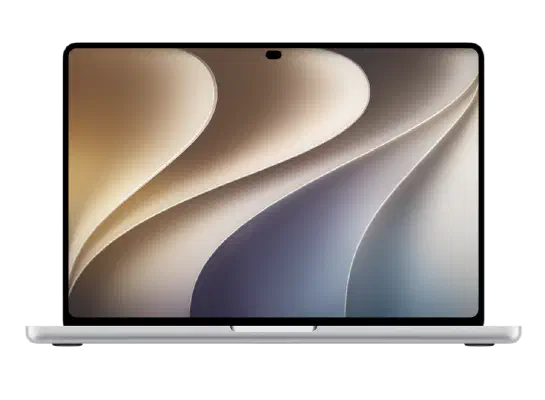
✓ This firmware is signed. This means that you can restore to it in Finder, the Apple Devices app, iTunes, or idevicerestore.
Your download should begin shortly. If it does not, you can download it directly here:
Download (20 GiB)Windows
- Install the latest version of Apple Devices from the Microsoft Store.
- Plug your MacBook Pro (14-inch PROLED XDR Display) in to your PC.
- Open Apple Devices, and navigate to your MacBook Pro (14-inch PROLED XDR Display).
- Hold the Shift key on your keyboard, and press "Restore".
- Select the
UniversalMac_27.2_26B8125_Restore.ipswfile that you downloaded. - Wait for the restore to complete, and the MacBook Pro (14-inch PROLED XDR Display) to reboot.
macOS
- Plug your MacBook Pro (14-inch PROLED XDR Display) in to your Mac.
- Navigate to your MacBook Pro (14-inch PROLED XDR Display) in Finder.
- Hold the Option or Alt key on your keyboard, and press "Restore".
- Select the
UniversalMac_27.2_26B8125_Restore.ipswfile that you downloaded. - Wait for the restore to complete, and the MacBook Pro (14-inch PROLED XDR Display) to reboot.
Linux
- Install idevicerestore.
- Plug your MacBook Pro (14-inch PROLED XDR Display) in to your PC.
- Open a terminal, and navigate to the IPSW file that you downloaded, e.g.
cd ~/Downloads - To perform a full erase restore, type
idevicerestore -e UniversalMac_27.2_26B8125_Restore.ipswand press enter. - Wait for the restore to complete, and the MacBook Pro (14-inch PROLED XDR Display) to reboot.
Windows
- Open PowerShell, and navigate to the IPSW file that you downloaded, e.g.
cd Downloads - Type
Get-FileHash UniversalMac_27.2_26B8125_Restore.ipsw -Algorithm SHA1 - The output of the command should match the following checksum:
30b48ba7b54114c8eec0bef084344c4fce908aa6. If it doesn't, you may need to redownload the file.
macOS
- Open a terminal, and navigate to the IPSW file that you downloaded, e.g.
cd ~/Downloads - Type
openssl sha1 UniversalMac_27.2_26B8125_Restore.ipsw - The output of the command should match the following checksum:
30b48ba7b54114c8eec0bef084344c4fce908aa6. If it doesn't, you may need to redownload the file.
Linux
- Open a terminal, and navigate to the IPSW file that you downloaded, e.g.
cd ~/Downloads - Type
openssl sha1 UniversalMac_27.2_26B8125_Restore.ipsw - The output of the command should match the following checksum:
30b48ba7b54114c8eec0bef084344c4fce908aa6. If it doesn't, you may need to redownload the file.
Checksums
| SHA256sum | b3f4cb057d73722af2a2840884778fd9fc5f433aa263d37767ebd44529b3c6f4
|
|---|---|
| MD5sum | 40148843adcde8c45be435a2df4ee0ed
|
| SHA1sum | 30b48ba7b54114c8eec0bef084344c4fce908aa6
|